
FAQ
As a precaution, some of the functions are not available with the demo version.

Choose the TREATMENT menu and click on "add a treatment" to expand the form. Note that fields marked with an asterisk (*) are required. Click ADD to activate the treatment.
Choose USERS then DOCTOR from the menu, and click on "add doctor" to expand the form. Note that fields marked with an asterisk (*) are required. Click ADD to activate the doctor.
Choose USERS then DOCTOR from the menu, and press ACTIVATE or DEACTIVATE. You may deactivate the doctor in case of vacation or short-term absence.
In order to open the Calendar, press APPOINTMENT – CREATE/EDIT.
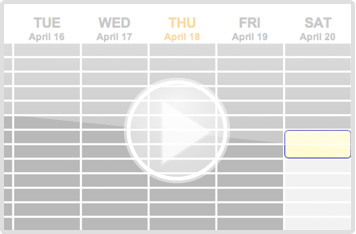
To make an appointment, open the calendar, choose the appropriate doctor, and then pick the appropriate date by clicking on the calendar field. After you select the day and time for the appointment a window for creating a new appointment will appear. Note that the name of the doctor, time and day of the visit appears on the top left. If it’s the patient’s first visit, it is necessary to register the patient using ADD NEW PATIENT form. Make sure all of the fields marked with an asterisk (*) are filled. If the patient has been registered, use the form labeled “FIND EXISTING PATIENT”. Indicate whether you are searching by first name, last name, phone number or email. Choose the appropriate procedure and click the ADD button. You should see the calendar indicating the time and day of an active visit with colored field. Note that each color block in the calendar is equivalent to a 15 minute interval.
Choose PATIENT – CREATE/EDIT and click on "add a patient" to expand the form. Note that fields marked with an asterisk (*) are required. Click ADD to create a patient file.
Choose PATIENT – SEARCH and search by either the first letter of the patient’s last name or by the first letter of the patient’s first name.
To delete an appointment, double-click on the corresponding field in the calendar, then press the “delete” button under DELETE APPOINTMENT heading. The patient should receive an email with confirmation. Note that deleted appointments cannot be restored!
To view appointment details, double-click on the corresponding field in the calendar.
To change the time of the appointment, double-click on the corresponding field in the calendar. Click "relocate" under the RELOCATE APPOINTMENT heading. Choose the appropriate time and date by clicking on the appropriate field in the calendar.
Double-click on the corresponding field in the calendar. You may change the default treatment price (for unpaid treatments only) by clicking on “negotiated price (click to edit)” and changing the amount.
Choose USERS – DOCTOR and click on “availability”. Indicate by a checkmark the availability of the doctor.
To search for appointments by patient, click APPOINTMENT- SEARCH BY PATIENT. To search for appointments by doctor, click APPOINTMENT- SEARCH BY DOCTOR.
Choose APPOITMENT – UNPAID. Press on the money symbol to pay for an appointment. Enter an appropriate amount under corresponding payment method.
To print out a receipt for payment, choose APPOINTMENT – PAID.